Create a Pinterest Pin template
Keep a consistent design while changing the text and images for each Pin.
- Upload
- Log in
- Create
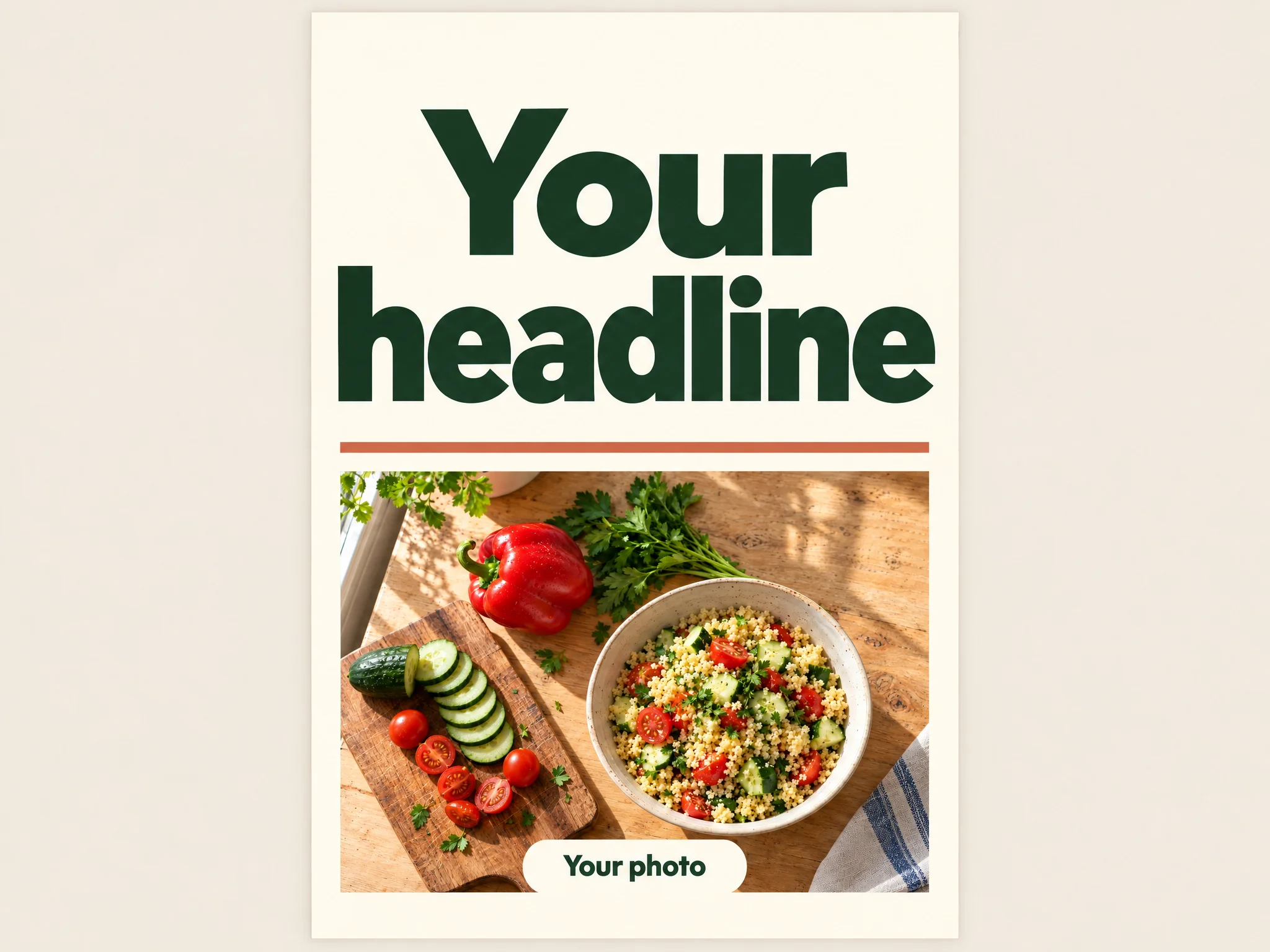
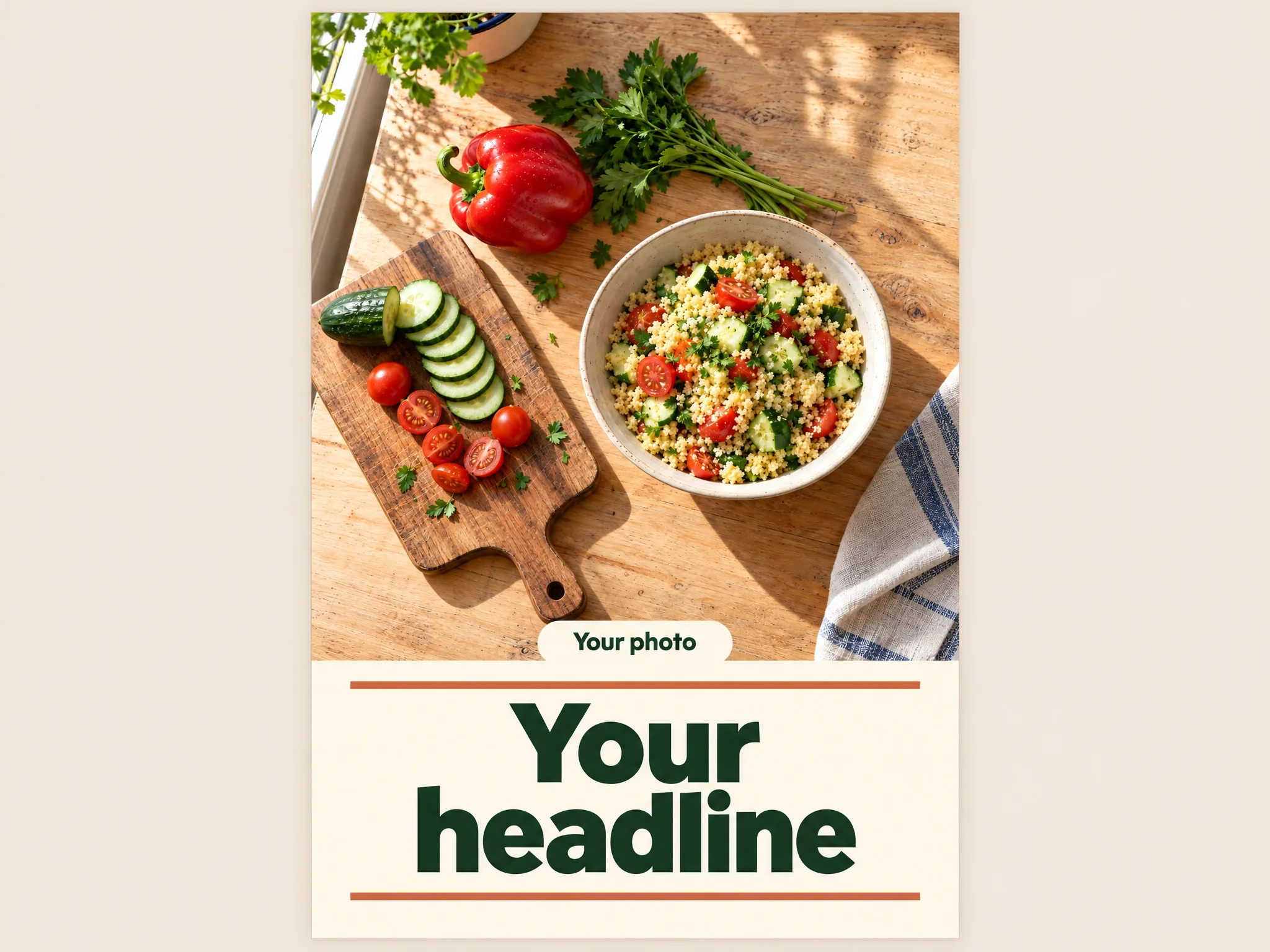
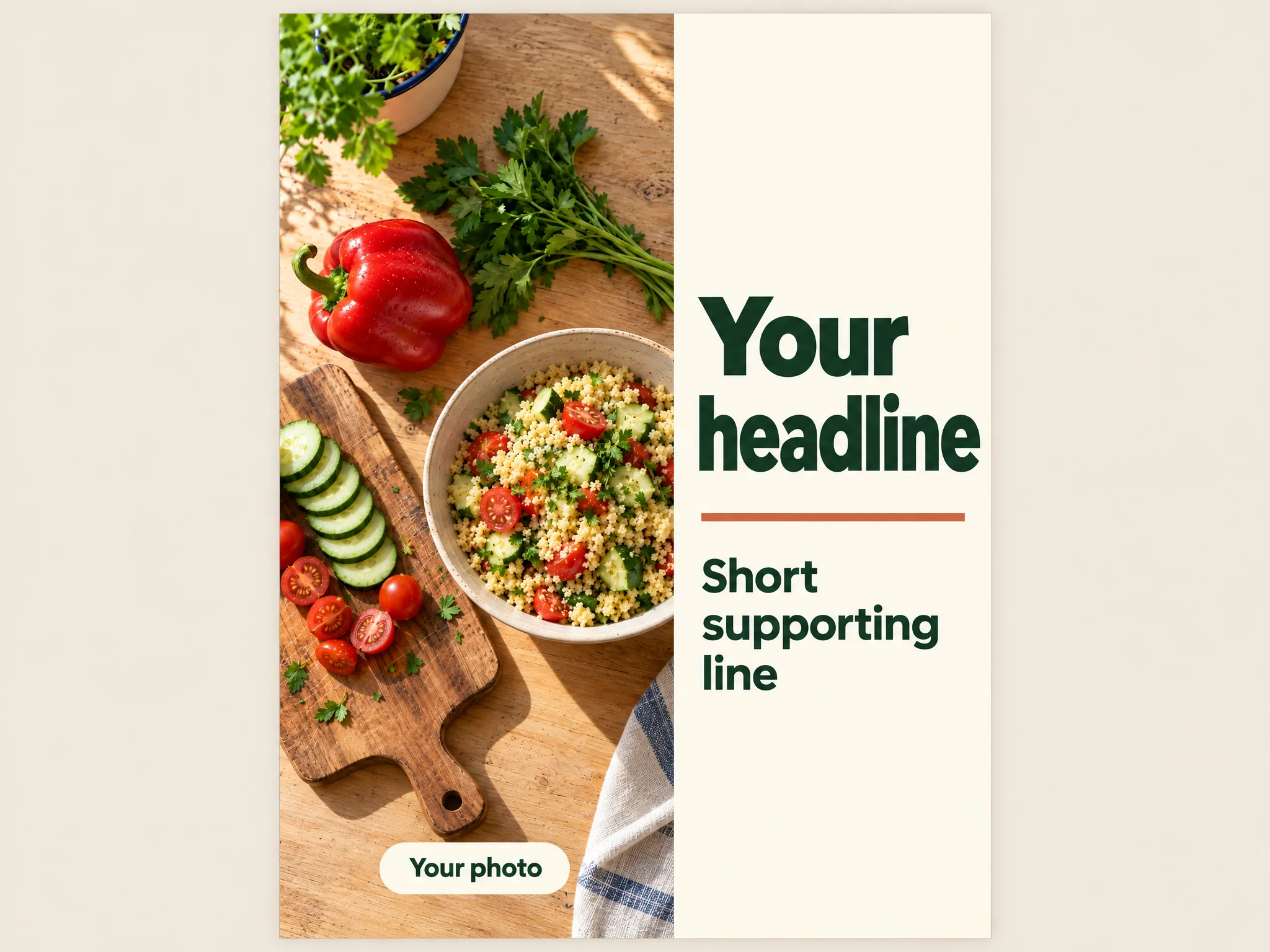
Choose a layout
Give the photo more space, or let the headline lead with a smaller image area.
Choose a visual style
Pick colors, font styles, and spacing for a simple, bold, or warm look, with branding if you have it.
Plan your template swaps
Add clear placeholders and a short guide to which design parts stay fixed and which you replace.
Find the right balance of words and images
Choose a layout with room for your message, then make a version for your own topic. The cooking designs are just examples.
FAQ
What size should I use?
Use the dimensions you need, or start with a suggested tall layout. If your design needs to meet Pinterest's current upload requirements, check those before finalizing the size.
How much text should I put on a Pin?
Start with one clear headline. Add a short supporting line only if it helps your message. If the wording crowds the design, shorten it or give the text more space.
How do I replace the text and images later?
Ask ChatGPT for a revised image, or rebuild the layout in an editor with separate text and image areas. A generated image isn't automatically a layered, editable file or native Pinterest template. This task doesn't publish to Pinterest.
What kind of photo works best in the template?
Choose a clear subject with room around it for cropping. Keep important details away from the headline area. Upload your own photo in ChatGPT if you want it used in the design.
How can I adapt one template to different topics?
Keep the headline position, spacing, and color roles consistent while changing the words and imagery. If a topic needs much more text, ask for a matching layout variation rather than squeezing it in.
Draft Pin headlines and descriptions
Use ChatGPT to turn your topic into short headline options and a description that supports your message.